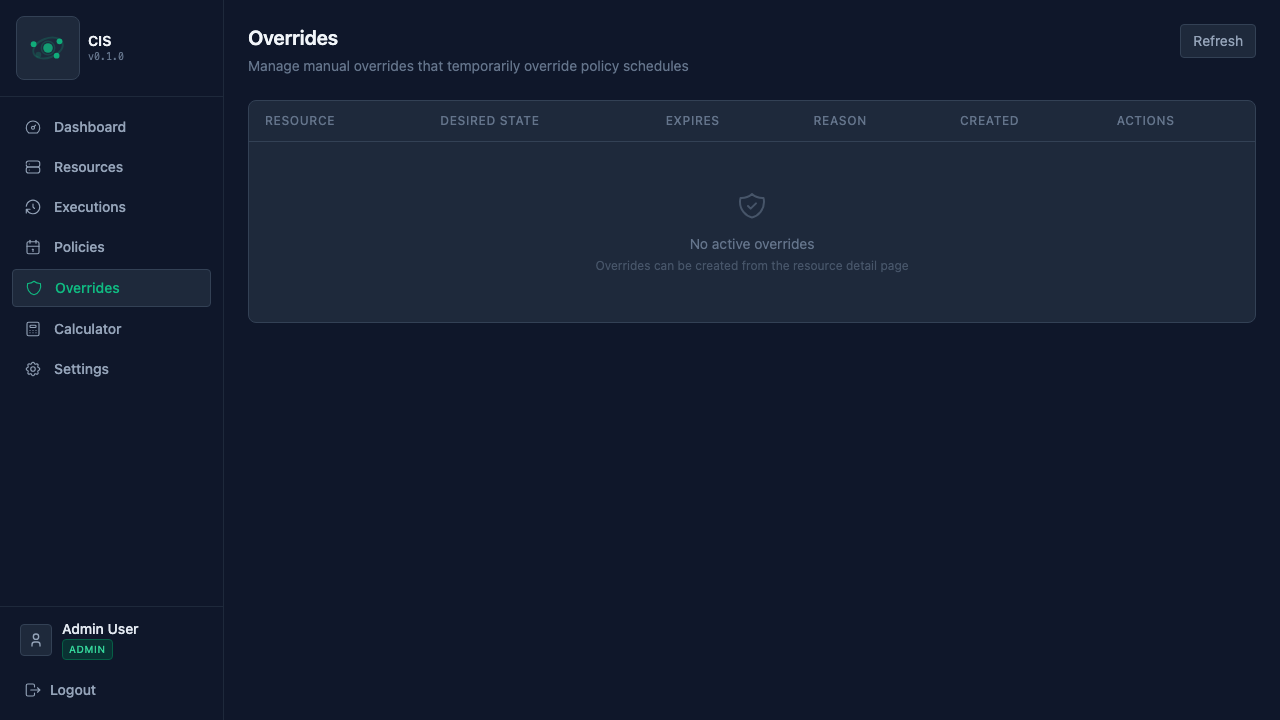
Overrides
An override temporarily forces a resource into a specific state — running or stopped — regardless of its policy schedule. Overrides expire automatically, so you don't have to remember to undo them.
When to use overrides
- Late deployment — your dev server is scheduled to stop at 6 PM, but you need it running until midnight to finish a release
- Incident response — force-stop a resource immediately during an incident, even if its policy says it should be running
- Demo or testing — keep a staging environment running over the weekend for a client demo
- Maintenance window — stop a resource outside its normal schedule for patching
Creating an override
To create an override, go to Resources, click on the instance you want to override, and use the override form on the resource detail page:
- Choose the desired state — running or stopped
- Set an expiration time — when the override should end
- Save the override
Once created, the override takes effect at the next reconciliation cycle (usually within a few minutes).
Precedence rules
When CIS determines what state a resource should be in, it follows this order:
- Active override — if a non-expired override exists, it wins
- Policy schedule — if no override, the resource's policy schedule decides
- Default stopped — if no override and no matching policy, the resource defaults to stopped
Example: You have a policy that runs your dev server Monday–Friday, 9 AM to 6 PM. On Wednesday at 5 PM, you create an override to keep it running until Thursday 2 AM. Here's what happens:
- Wednesday 5 PM – Thursday 2 AM: running (override wins)
- Thursday 2 AM – 9 AM: stopped (override expired, policy says stopped)
- Thursday 9 AM – 6 PM: running (policy schedule)
Viewing and canceling overrides
The Overrides page lists all active overrides with their resource, desired state, and expiration time. If you no longer need an override, you can cancel it early — the resource will revert to its policy schedule at the next reconciliation cycle.