Scheduling
A policy defines when your cloud instances should be running. Attach a policy to resources, and CIS automatically starts and stops them on schedule.
Creating a policy
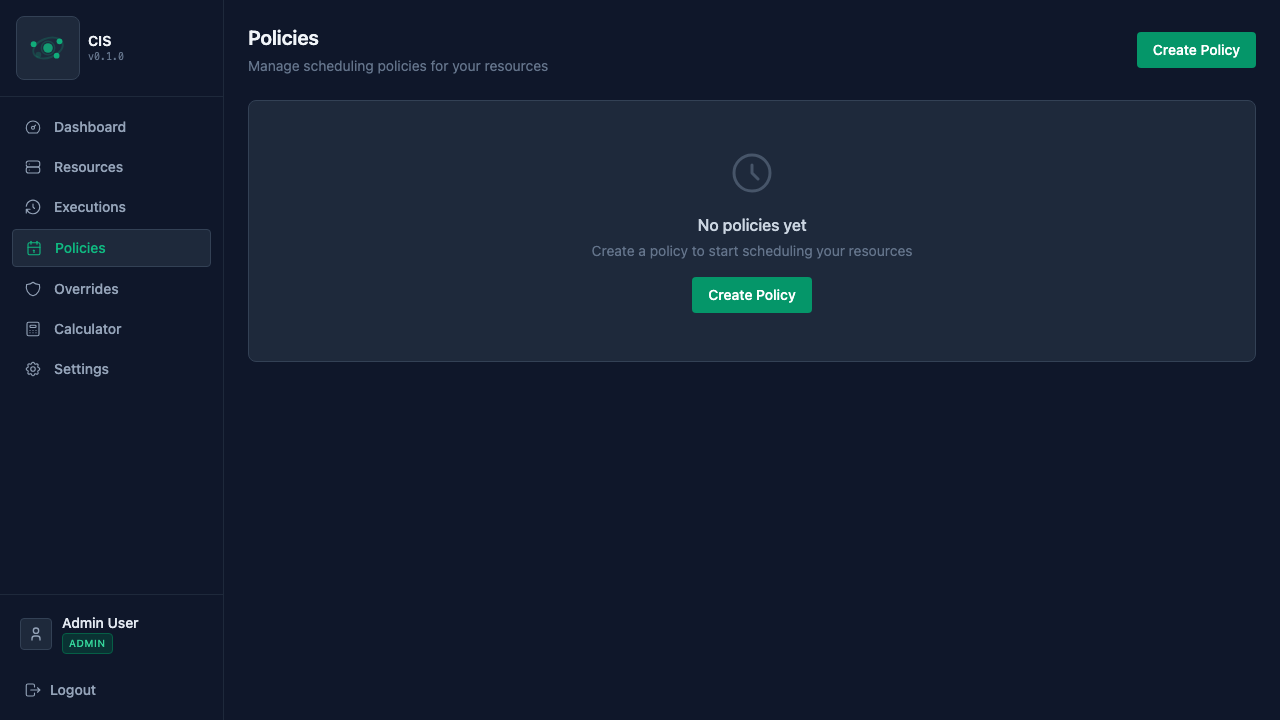
Go to Policies and click Create Policy. You'll need to set:
- Name — something descriptive like "Dev hours" or "Weekend shutdown"
- Timezone — all schedule times are evaluated in this timezone
- Schedule — choose between a weekly grid or cron expressions
- Resources — pick which instances this policy applies to
Schedule types
Weekly grid
The weekly grid lets you visually paint the hours when instances should be running. Click and drag to select time blocks — green means running, dark means stopped.
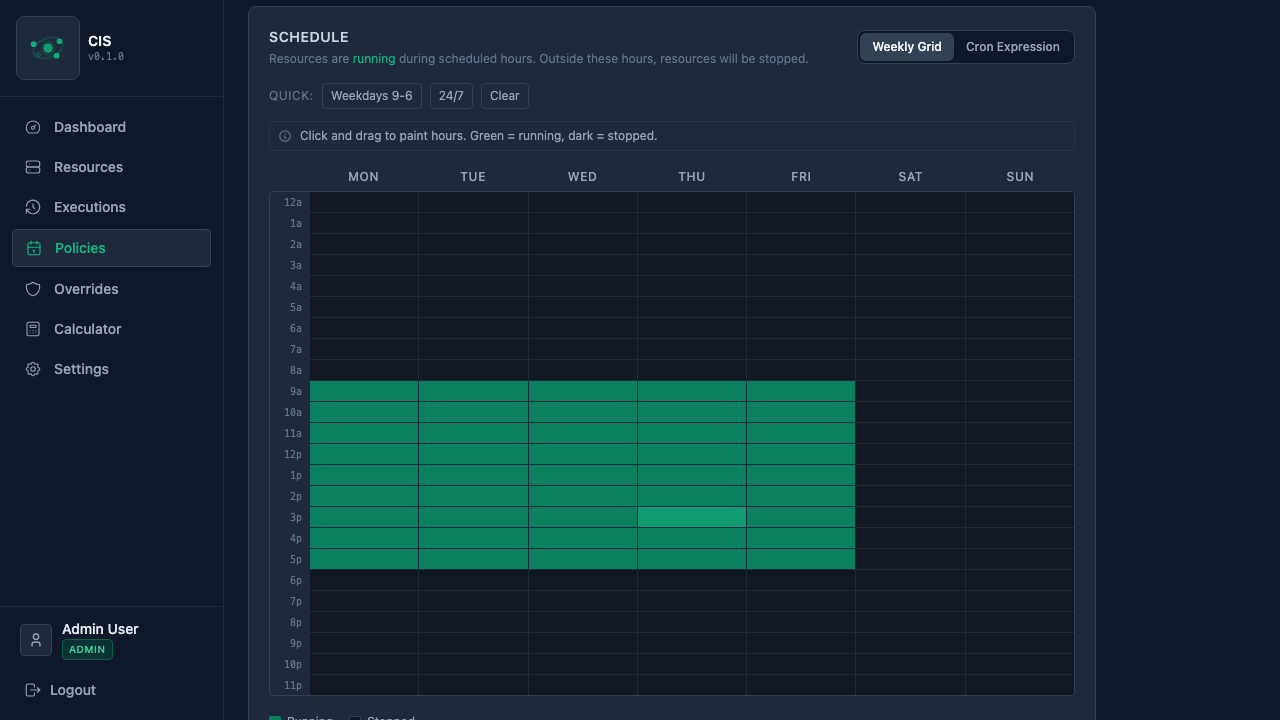
Quick presets are available to save time:
- Weekdays 9-6 — Monday through Friday, 9 AM to 6 PM
- 24/7 — always running
- Clear — reset to all stopped
Under the hood, the weekly grid is stored as time ranges per day:
{
  "monday": [{ "start": "09:00", "end": "18:00" }],
  "tuesday": [{ "start": "09:00", "end": "18:00" }],
  "wednesday": [{ "start": "09:00", "end": "18:00" }],
  "thursday": [{ "start": "09:00", "end": "18:00" }],
  "friday": [{ "start": "09:00", "end": "18:00" }]
}
Days without entries (like Saturday and Sunday above) default to stopped.
Cron expressions
For schedules that don't fit a simple weekly pattern, switch to Cron Expression mode. You define two cron expressions — one for when to start instances and one for when to stop them.
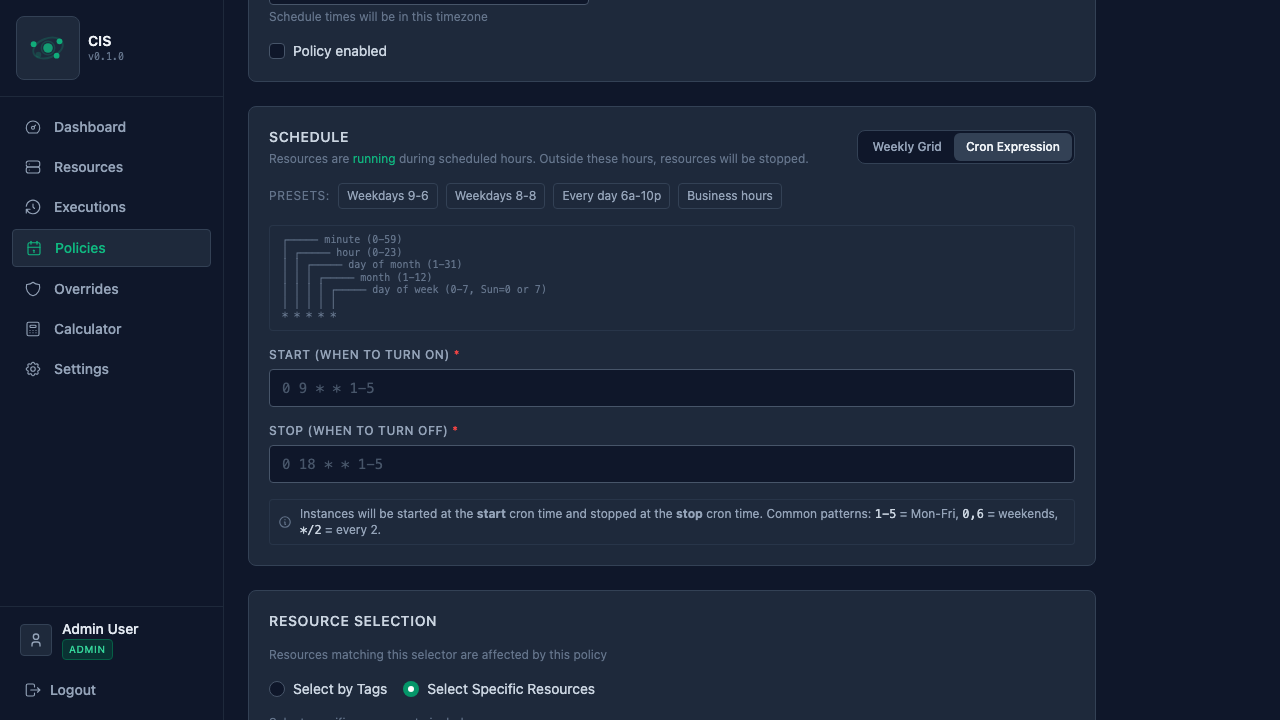
CIS uses standard 5-field cron syntax: minute hour day-of-month month day-of-week
Common patterns:
| Schedule | Start | Stop |
|---|---|---|
| Weekdays 9 AM – 6 PM | 0 9 * * 1-5 | 0 18 * * 1-5 |
| Weekdays 8 AM – 8 PM | 0 8 * * 1-5 | 0 20 * * 1-5 |
| Every day 6 AM – 10 PM | 0 6 * * * | 0 22 * * * |
| Business hours (8 AM – 6 PM, Mon–Fri) | 0 8 * * 1-5 | 0 18 * * 1-5 |
Quick reference: 1-5 = Monday through Friday, 0,6 = weekends, */2 = every 2.
The UI includes preset buttons for common schedules, so you don't need to memorize cron syntax.
Timezone handling
Every policy has a timezone setting (e.g., America/New_York, Europe/Madrid). All schedule times are evaluated in that timezone, including daylight saving transitions. This means a "9 AM start" always means 9 AM local time, even when clocks change.
Resource selectors
Each policy specifies which resources it applies to. You can select resources in two ways:
- Specific resources — pick individual instances from a checklist
- By tags — match resources based on their cloud provider tags (e.g., all instances tagged
env: staging)
A resource can only be matched by one policy at a time. If a resource doesn't match any policy, it defaults to stopped.
How reconciliation works
CIS doesn't just send start/stop commands at scheduled times — it continuously reconciles. Every few minutes, the reconciliation engine:
- Checks each resource's desired state (based on its policy schedule and any active overrides)
- Compares it to the actual state reported by the cloud provider
- Issues start or stop commands for any resources that are out of sync
This means if someone manually starts an instance that should be stopped, CIS will stop it at the next reconciliation cycle. It also means that if a start command fails, CIS will retry automatically.